

Explore guide
Explore is the query workbench for monitored-domain lookup results in Have I Been Squatted. It searches data already collected for the organization, including permutations, registration data, Domain Name System (DNS) records, Hypertext Transfer Protocol (HTTP) signals, public web identifiers, Transport Layer Security (TLS) certificate data, passive DNS and TLS observations, classification scores, screenshots, tags, and notes.
Use Explore when a question is too specific for a table filter but not ready to become a standing rule. The same Upsilon query language powers Explore and the Rules Engine, so a working Explore query can become a detection rule with minimal translation.
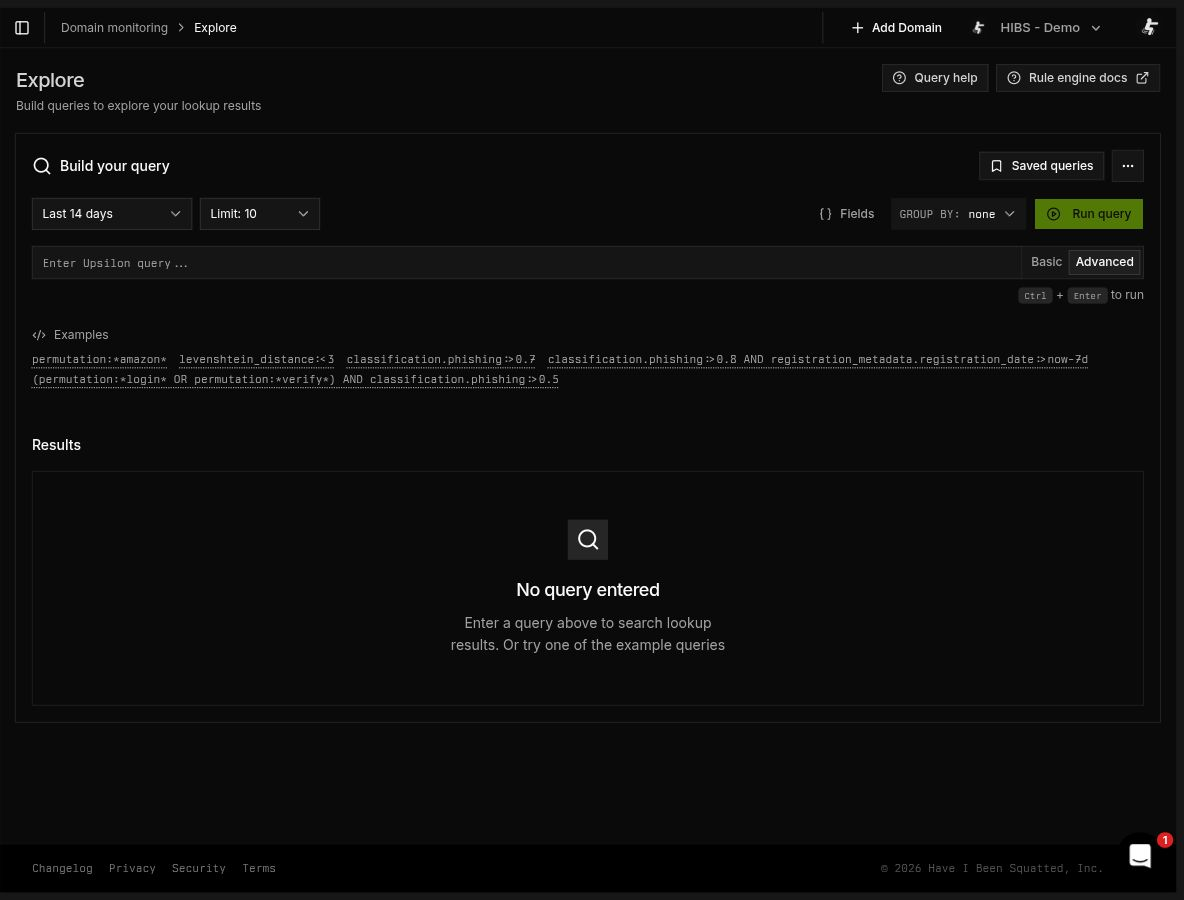
Open Explore
Section titled “Open Explore”Open Domain monitoring > Explore from the application sidebar.
The page has three main areas:
- Build your query: Query editor, examples, saved queries, field browser, time range, result limit, grouping, and rule actions
- Results: Rich and raw result views for matching lookup results
- Result details: A modal with the same enrichment panels used elsewhere in lookup review
Query model
Section titled “Query model”Explore runs Upsilon queries against lookup results owned by the current organization. The query is combined with the selected time range, so both the lookup and result timestamps must fall inside the chosen window.
The default time range is Last 14 days. Available presets are Last 24 hours, Last 7 days, Last 14 days, and Last 30 days. The result limit can be 10, 25, 50, or 100.
Example queries:
permutation:*amazon*levenshtein_distance:<3classification.phishing:>0.7identifiers:"google_tag_manager=GTM-ABC123"classification.phishing:>0.8 AND registration_metadata.registration_date:>now-7d(permutation:*login* OR permutation:*verify*) AND classification.phishing:>0.5For syntax details, see the Upsilon query syntax reference.
Building queries
Section titled “Building queries”Explore supports both guided filtering and raw Upsilon input.
- Type plain text to search domains by
permutationcontains logic. - Use field clauses for exact, wildcard, numeric, date, array, and existence queries.
- Use the
identifiersfield with an exactkind=valuepair, such asgoogle_tag_manager=GTM-ABC123. - Use
AND,OR,NOT, and parentheses to combine clauses. - Select Query help for syntax examples.
- Select Fields to browse available fields by category and insert a field into the query.
The field browser groups fields into categories such as basic domain information, DNS records, server and infrastructure, web enrichment, classification scores, geolocation, TLS certificate, passive DNS/TLS, and registration data.
Useful field patterns:
dns_ns:@*cloudflare*_exists_:rdapregistration_metadata.registration_date:>now-7d_exists_:identifiersGrouping
Section titled “Grouping”Use GROUP BY to return one representative result per group. This is useful when a broad query returns many duplicate-looking rows and the review needs variety rather than every row.
Supported grouping fields are:
permutationkindlevenshtein_distancesmtphttp_bannerorigin_x509.issuerorigin_x509.subjectorigin_x509.serial_number
Grouped results are still constrained by the selected time range, query, and result limit.
Results
Section titled “Results”The Rich view shows compact cards for analyst review. The Raw view shows structured row data closer to the underlying lookup result shape. Selecting a result opens the detailed result modal for deeper inspection. Identifier rows link back to Explore with an exact query for that identifier pair.
An exact identifier match can link sites that reuse the same public deployment identifier. It is investigation evidence, not proof that a domain is malicious.
Export downloads the currently loaded result set in one of three formats:
- Comma-separated values (CSV): Spreadsheet-friendly columns
- JavaScript Object Notation (JSON): Pretty-printed JSON array
- JSON Lines (JSONL): One JSON object per line for downstream processing
The export is bounded by the selected result limit. If a query matches more rows than the selected limit, narrow the query or run additional passes with different time windows or criteria.
Saved queries
Section titled “Saved queries”Use Save Query to store a query with a name, description, time range, result limit, and optional group-by field. Use Saved queries to reload previous searches.
Saved queries are useful for repeat investigations, team handoff, and recurring review patterns that are not yet ready to become rules.
Turning searches into rules
Section titled “Turning searches into rules”Explore is often the safest place to prototype a rule:
- Start with a broad query in Explore.
- Use the time range and result limit to test against recent lookup history.
- Inspect false positives and adjust the query.
- Select Generate Rule to open the rule builder with the current query.
- Finish severity, status, and notification behavior in the rule builder.
Only valid, non-empty queries can be sent to the rule builder. The action also requires the permissions needed to create rules.
Use Monitoring > Rules to manage existing rules, or open the rule builder directly when the query is already known. The rule builder accepts the same q query parameter that Explore uses when it generates a rule.
Shareable URLs
Section titled “Shareable URLs”Explore keeps query state in the Uniform Resource Locator (URL). The q, t, limit, and groupBy parameters can be shared with another signed-in user in the same organization.
Example:
https://haveibeensquatted.com/app/monitoring/explore?q=classification.phishing%3A%3E0.7&t=14d&limit=25&groupBy=noneShared URLs run against the receiving user’s organization access and current data. They do not expose result rows by themselves.