Browser Protection
Have I Been Squatted Browser Protection is a free extension for Chrome. It warns you when a site pretends to be one you trust, such as a lookalike or phishing site.
Lookalike sites copy the name of a bank, a shop, or a sign-in page with a small change: an extra letter, a swapped character, or a letter from another alphabet. With protection on, Browser Protection sends the names of the sites you open, and of the sites those pages load, to Have I Been Squatted for a check. When Have I Been Squatted flags a site as dangerous, a warning appears at the top of the page.
No account is needed.
Requirements
Section titled “Requirements”- Chrome 116 or later on a desktop computer.
- Browser Protection does not run in Incognito windows, so you get no warnings there.
Turn on protection
Section titled “Turn on protection”Protection is off when you install Browser Protection. Nothing is checked until you turn it on.
-
Install Browser Protection. A welcome tab opens.
-
Read what Browser Protection sends, then select Turn on protection.
-
Pin Browser Protection to the toolbar, so you can see its results on every page.
While protection is off, the toolbar icon shows a purple !. Select the icon to open the side panel and turn protection on. You can also turn protection on or off in Settings > Protection.
Read the results
Section titled “Read the results”Browser Protection shows its result in three places:
- The toolbar icon shows a badge for the current tab.
- A warning bar appears at the top of a dangerous page.
- The side panel shows the result for the page and for each site the page loads. Select the toolbar icon to open it.
Toolbar icon
Section titled “Toolbar icon”| Badge | Meaning |
|---|---|
| No badge | No site on this page was flagged. |
| Red ! | Have I Been Squatted flagged this site as dangerous. |
| Amber ! | Have I Been Squatted flagged this site as suspicious. |
| Amber number | The page itself was not flagged, but that number of sites it loads were. |
| Purple ! | Protection is off. Nothing is checked. |
| Gray dot | You can turn on Gmail or Outlook protection for this page. |
Hover over the icon to read the same result in words.
Results in the side panel
Section titled “Results in the side panel”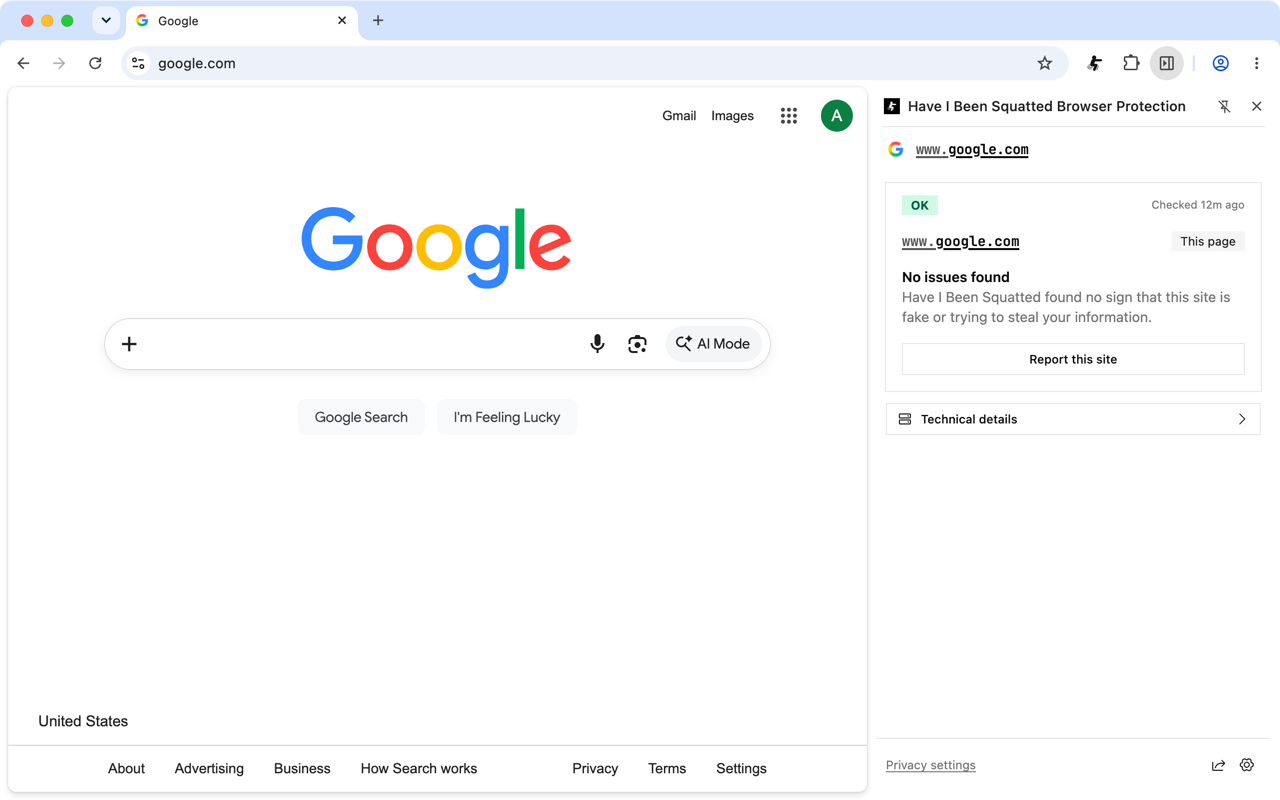
| Result | Meaning |
|---|---|
| OK | Have I Been Squatted found no sign that this site is fake or trying to steal your information. |
| Dangerous | Have I Been Squatted found strong signs of phishing. Do not sign in or enter personal or payment details. |
| Suspicious | Check the address carefully. Do not sign in or pay unless you are sure this is the real site. |
| Not in use | The site looks like a placeholder or for-sale page, not a real business or service. |
| Unknown | Have I Been Squatted checked the site but could not decide. This does not mean the site is safe. |
| Trusted by you | You trust this domain. Browser Protection does not check or warn about it or its subdomains. |
| Could not check this site | The check failed. Browser Protection tries again later. Until then, be careful with sign-ins and payments. |
| Nothing to check here | The page has no public site name, such as a browser page, a local network address, or an IP address. |
A new check can take up to a few minutes. Browser Protection saves results on your device for a while, so the same site is not checked on every visit.
Warning bar
Section titled “Warning bar”When Have I Been Squatted flags the page you are on as dangerous, a red bar appears at the top of the page:
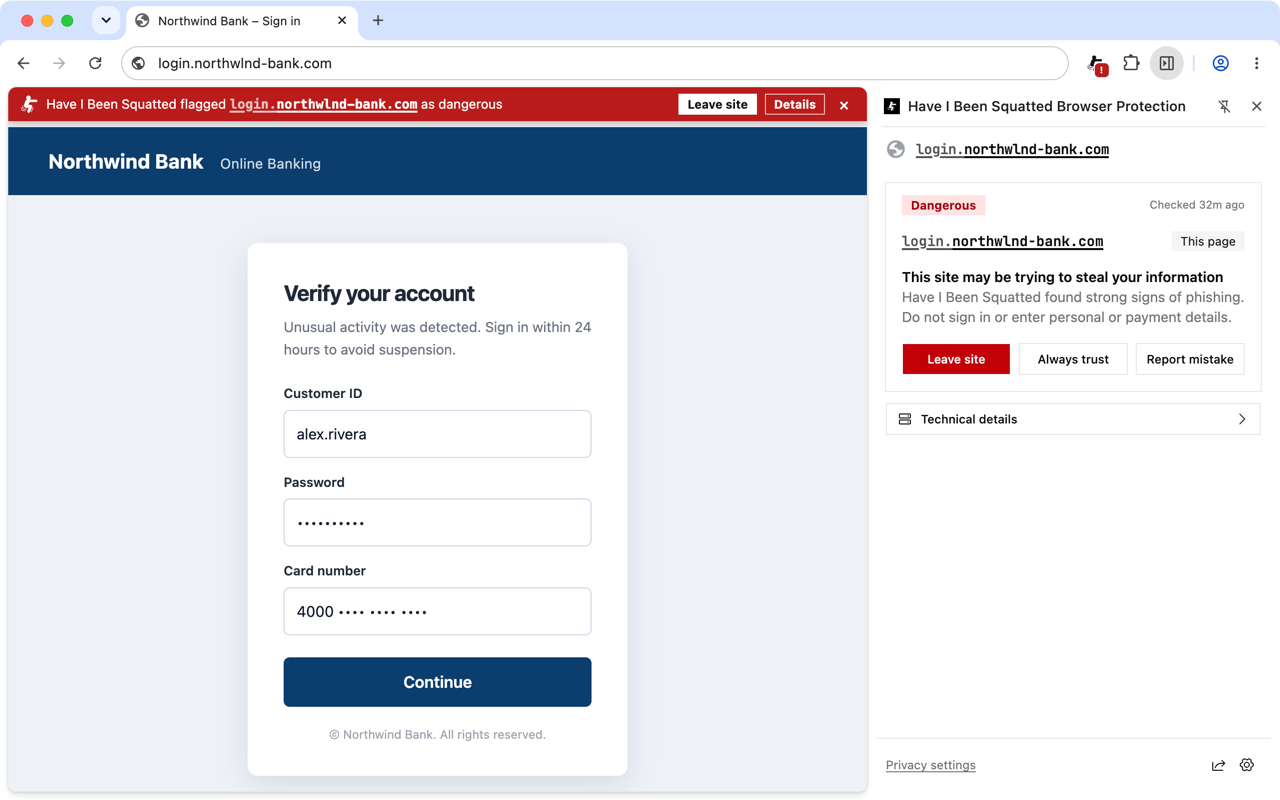
- Leave site closes the tab.
- Details opens the side panel.
- Hide for now (the close button) hides the bar. The toolbar badge stays.
A suspicious site, or a flagged site that the page loads, does not show the bar. The toolbar badge and the side panel show it instead.
Lookalike letters
Section titled “Lookalike letters”Some lookalike sites use a letter from another alphabet that looks like a
common letter, such as oƙta.com in place of okta.com. When a site name
uses letters that your browser languages do not use, an amber bar names those
letters and shows the address as your browser reads it.
Select Hide for now to close the bar. To stop the bar for good, select Don’t warn again, then choose one of these:
- For those letters
- For this site
- For addresses that end in that domain ending, such as
.de
Manage these choices and your languages in Settings > Lookalike characters. A dangerous result replaces the amber bar with the red one.
Trust a site
Section titled “Trust a site”If Browser Protection flags a site that you know is real, you can trust its domain. Browser Protection then stops checks and warnings for that domain and its subdomains. While a trusted site is the page you are on, Browser Protection also does not check the sites that page loads.
-
Open the side panel on the flagged site.
-
Select Always trust.
To see or remove your trusted domains, open Settings > Trusted domains.
Email protection
Section titled “Email protection”Gmail protection and Outlook protection check the links and the sender of each email you open in Gmail or Outlook on the web. Both are off until you turn them on, and both work only while protection is on.
-
Open the side panel, then select the gear button to open Settings.
-
In Protection > Email protection, turn on Gmail or Outlook.
-
Open an email. Browser Protection marks links to dangerous or suspicious sites, and the side panel lists each site the email links to.
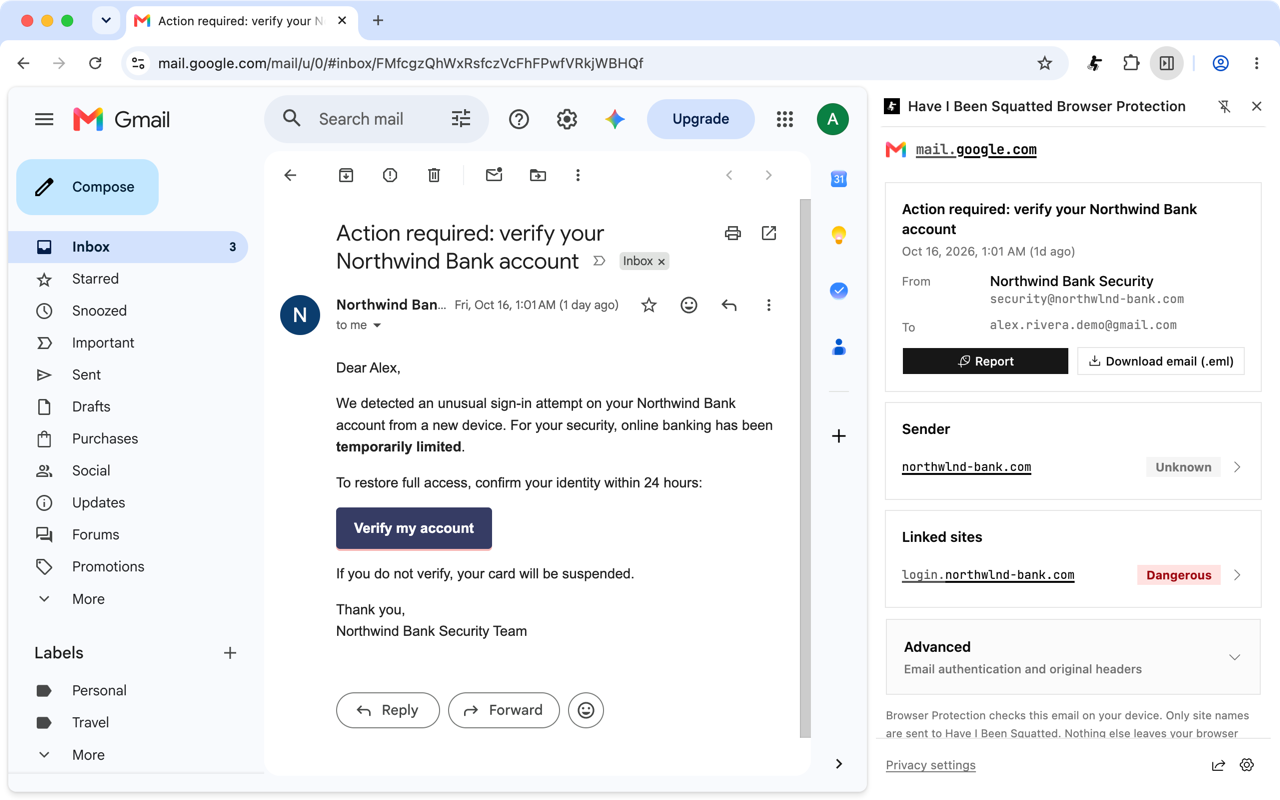
Browser Protection reads the open email on your device. It sends only the site names of the links and the sender to Have I Been Squatted. The email itself is not sent unless you report it.
Report a site or a mistake
Section titled “Report a site or a mistake”Reports help Have I Been Squatted find harmful sites and fix wrong results. You review what is sent before you send a report.
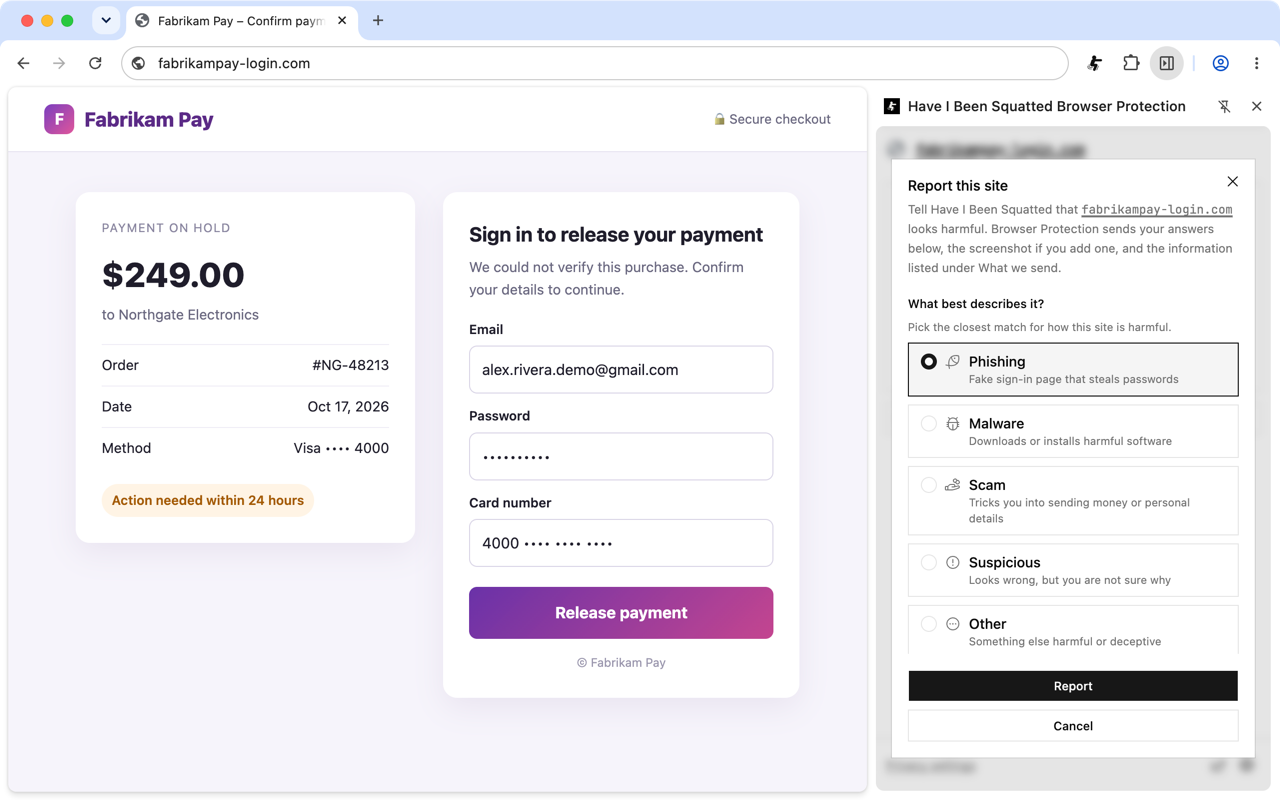
| To report | Do this |
|---|---|
| A harmful site | In the side panel, select Report this site. Pick Phishing, Malware, Scam, Suspicious, or Other, add details if you want, then select Report. |
| A wrong result | In the side panel, select Report mistake on the flagged site, pick a reason, then send it. |
| A phishing email | With Gmail or Outlook protection on, open the email. In the side panel, select Report. Optionally pick the phishing links, then select Report. |
What a report sends
Section titled “What a report sends”Each site report uses a privacy level. Set the default in Settings > Reports > Default privacy level, or change it in the report itself.
| Privacy level | What is sent |
|---|---|
| Minimal | The site name, the category you pick, the details you type, the privacy level, a report ID and time, and the Browser Protection version. |
| Balanced (default) | Everything in Minimal, plus the page address and the earlier pages in the tab, with likely private details masked. It also sends your browser, browser engine, and operating system with their main version numbers, your device type, the page title, description, and site icon, and a summary of the page. |
| Detailed | Everything in Balanced, plus the full version numbers of your browser, browser engine, and operating system. |
You can also add a screenshot. Browser Protection masks likely personal details, such as email addresses and phone numbers, before it takes the screenshot. You can hide more parts of the screenshot before you send it. Automatic masking covers the page itself, not content from other sites embedded in it.
Settings > Reports > Recent reports lists the reports you sent from this device. Browser Protection keeps only a short summary of each report for 14 days.
Privacy
Section titled “Privacy”- Protection is off until you turn it on.
- Checks send only site names to Have I Been Squatted, never page content. Like any web request, Have I Been Squatted sees your IP address.
- Page details leave your browser only when you send a report, after you review them.
- Results, trusted domains, and settings stay on your device. Failed checks are not saved. Clear saved results in Settings > Advanced > Saved results.
- Opening Technical details in the side panel also requests public registration records for that site.
- No account, no ads, and no tracking.
The privacy policy covers Browser Protection and the report site.
Test Browser Protection
Section titled “Test Browser Protection”squat.fail is a set of harmless test sites operated by Have I Been Squatted. Each one always returns the same result, so you can see each result without visiting a real harmful site.
| Site | Expected result |
|---|---|
| legit.squat.fail | OK |
| parked.squat.fail | Not in use |
| suspicious.squat.fail | Suspicious |
| phishing.squat.fail | Dangerous, with the warning bar |
| squat.fail | Unknown |
Troubleshooting
Section titled “Troubleshooting”| Problem | What to do |
|---|---|
| The toolbar icon shows a purple ! | Protection is off. Open the side panel and turn it on. |
| No result appears for a site | A new check can take up to a few minutes. Keep the side panel open, or reload the page. |
| The side panel says Could not check this site | Browser Protection tries again later. Check your internet connection. |
| A real site is flagged | Select Report mistake in the side panel. If you are sure the site is real, select Always trust. |
| Gmail or Outlook links are not checked | Turn on protection, then turn on Gmail or Outlook in Settings > Protection > Email protection. |
| No warnings in an Incognito window | Browser Protection does not run in Incognito windows. |
Get help
Section titled “Get help”Email help@haveibeensquatted.com, or ask in the Have I Been Squatted Discord. Include the Browser Protection version from Settings > About.